Thanks for subscribing to NaturalBirthandBabyCare.com!
Many email providers now use programs to block “spam” emails (emails that are unwanted). Sometimes, though, they block emails you really want to get!
To Make Sure You’re Getting Your NaturalBirthandBabyCare.com Emails Please Do The Following:
Add the NaturalBirthandBabyCare.com email addresses to your email white list to be sure you have the best chances of receiving content and updates.
kristen@naturalbirthandbabycare.com is the best email address to add, and you can also add contact@naturalbirthandbabycare.com
A “whitelist” is a list of email addresses or domain names that your email program always lets through to your inbox.
Why is this important?
Unsolicited, unwanted advertising e-mail, commonly known as “spam,” has become a big problem. There’s so much spam out there that most email services and Internet Service Providers (ISPs) have blocking or filtering systems in place, or they rely on “blacklists” to tell “good guys” from “bad guys.”
I really appreciate their attempts to protect us from spam (I don’t like it either!), but everyone knows that the current systems are far from perfect. They block emails you want to get because the “rules” aren’t very precise. Anti-spam activists are working hard to cut down on these “false positives,” but right now you might unexpectedly find you’re not getting getting the emails you want.
Luckily you can make sure you get the emails you want – use a whitelist 🙂
Go ahead and whitelist NaturalBirthandBabyCare.com so you get the emails you want!
All email systems are different, but here are directions for whitelisting in a few of the most popular ones:
Gmail:
1. In your inbox, locate an email from kristen@naturalbirthandbabycare.com (ex. your welcome mail).
2. Drag this email to the “primary” tab of your inbox. If it asks, say you always want these emails to go into your primary tab!
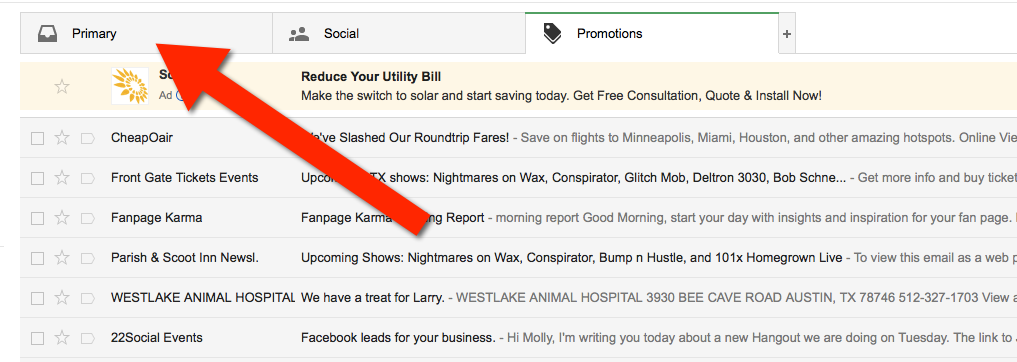
3. You’ll see that our emails will go to your primary folder in the future!
Yahoo! Mail
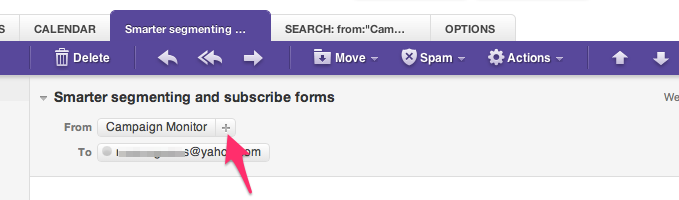
When opening an email message, a “+” symbol should display next to From: and the sender’s name. Select this and an “Add to contacts” pop-up should appear. Select “Save”:
Mac Mail
1. Select “Mail” and “Preferences” from the top menu.
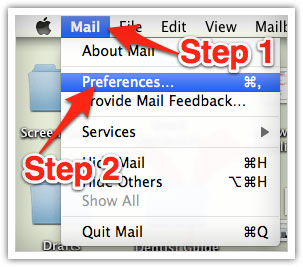
2, In the “Preferences” window, click the “Rules” icon.
3. Click the “Add Rule” button.
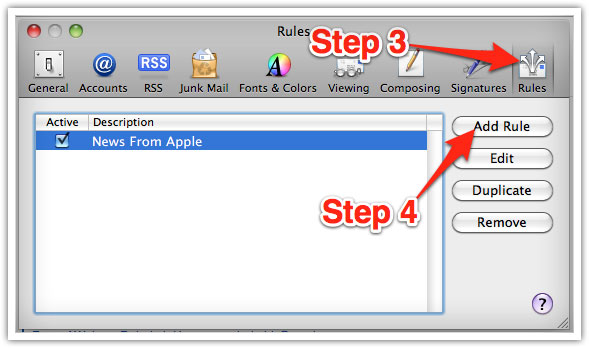
4. In the “Rules” window, type a name for your rule in the “Description” field.
5. Use the following settings: “If any of the following conditions are met: From Contains.”
6. Type the sender’s email address in the text field beside “Contains.”
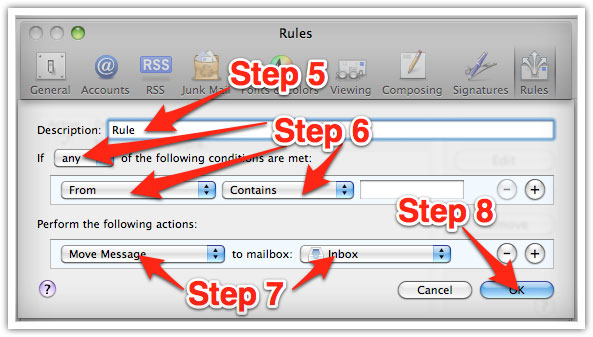
7. Select “Move Message” and “Inbox” from the drop-down menus.
8. Click “Ok” to save the rule.
Outlook 2003 & Later
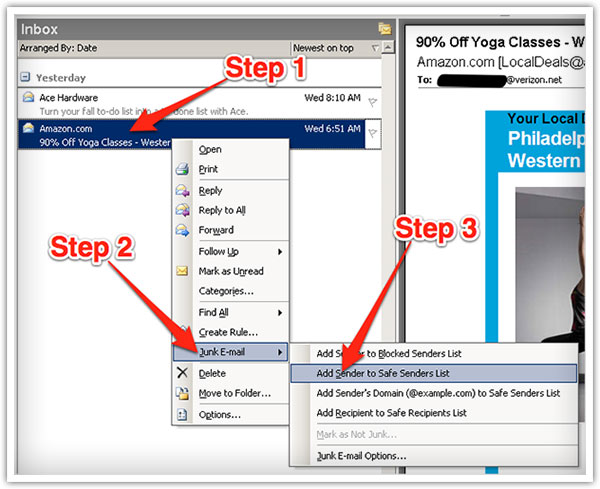
1. Right-click on the message in your inbox.
2. Select “Junk E-mail” from the menu.
3. Click “Add Sender to Safe Senders List.”